
Download Screen Capture – Free Secure Screen Recorder for Windows & macOS
Overview
Screen Capture is a lightweight, free screen recorder that lets you designate any portion of your desktop and turn it into a video file. Unlike basic screenshot tools, this app captures every on‑screen action, including mouse clicks, cursor movements, and keyboard shortcuts, making it ideal for creating tutorials, bug reports, or quick demos. The software works on both Windows and macOS platforms and offers a simple, drag‑and‑drop interface that requires no steep learning curve.
While it cannot bypass protected content such as Netflix or other DRM‑enabled streams, it excels at recording everyday desktop work. Audio capture is possible, but it relies on an older audio driver, so users may need to adjust system settings for optimal results. The program is regularly updated to improve stability, though occasional freezes can occur after processing very long recordings.
Overall, Screen Capture provides a secure, free solution for anyone who needs a reliable tool to document on‑screen activity without the overhead of a full‑featured video editor.
Key Features
- Free download with no hidden fees or subscription required.
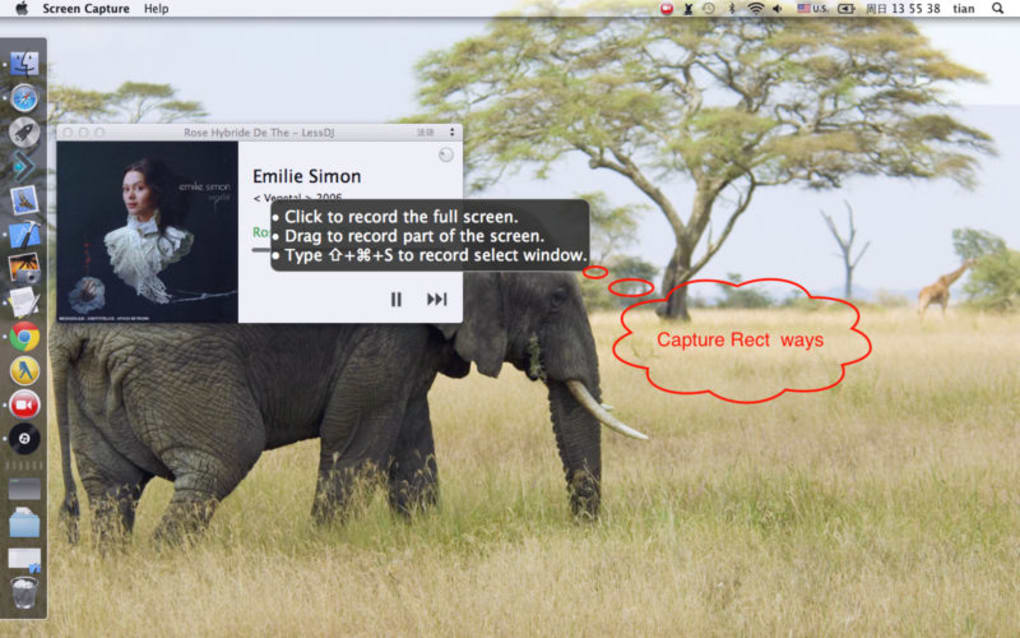
- Customizable capture area – select any rectangle, full screen, or specific window.
- Mouse‑click visualizer that highlights left, right, and double‑click actions.
- Supports Windows 10/11 and macOS 10.14+ (Catalina, Big Sur, Monterey, Ventura).
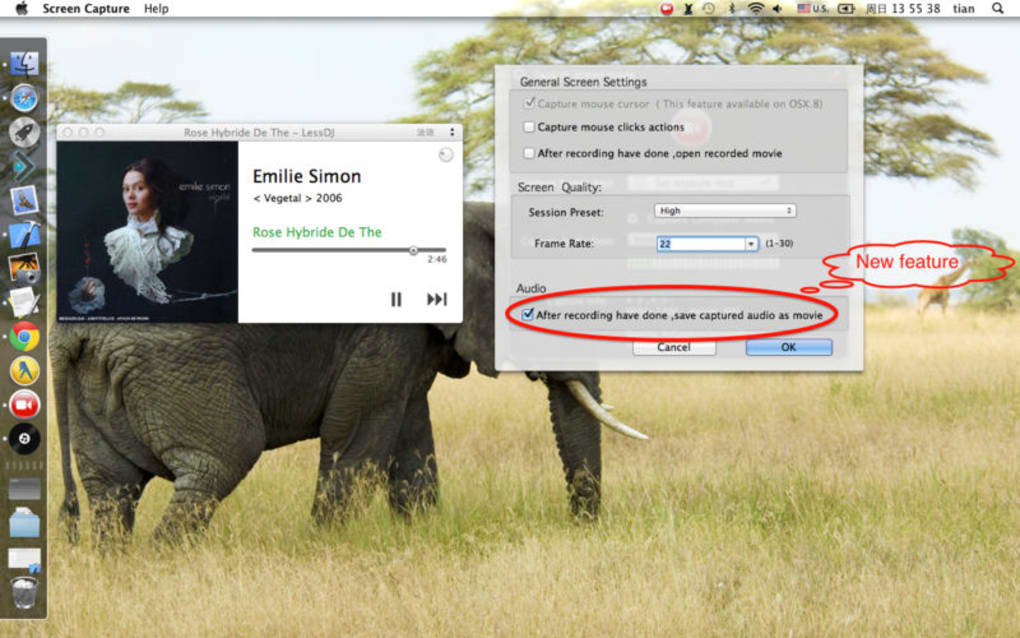
- Basic audio recording using legacy drivers – ideal for voice‑over narration.
- Export to common video formats (MP4, AVI, MOV) for easy sharing.
- Automatic update notifications to keep the app secure and compatible.
- Lightweight footprint – under 30 MB install size, minimal RAM usage.
Screen Capture’s feature set focuses on the essentials that users truly need when creating quick instructional videos. The mouse‑click visualizer, for instance, adds a professional polish without requiring a separate editing step. Because the tool is free, it appeals to students, freelancers, and small‑business owners who want a cost‑effective alternative to premium solutions like Camtasia or OBS Studio. The export options ensure that recorded files can be uploaded directly to YouTube, shared via cloud services, or embedded in PowerPoint presentations. Regular security patches and a simple UI make the app both safe and user‑friendly, reinforcing its reputation as a reliable screen‑recording utility.
Installation, Usage & Compatibility
Step‑by‑Step Installation
1. Visit the official website and click the Download Screen Capture button for your operating system.
2. For Windows, run the .exe installer; for macOS, open the .dmg file and drag the app to the Applications folder.
3. Follow the on‑screen prompts – the installer will ask for permission to create a shortcut on the desktop and to allow screen‑recording access (required by macOS).
4. After installation, launch the app and accept the privacy prompts that enable video and audio capture.
How to Record
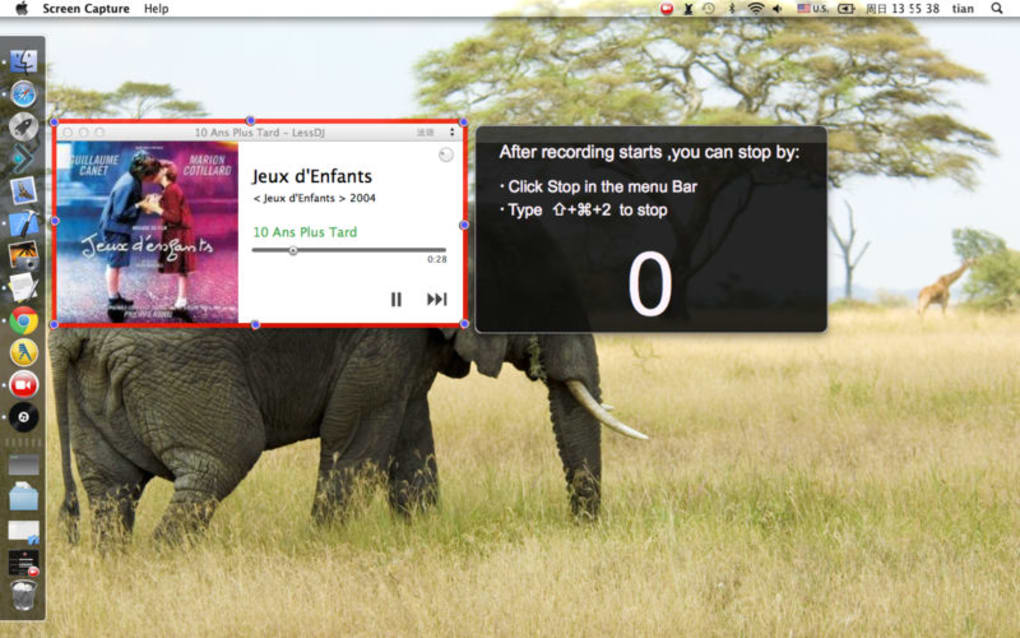
When the program starts, you’ll see a semi‑transparent overlay. Click and drag to draw the recording rectangle, or choose the “Full Screen” button for a complete capture. To enable mouse‑click visualization, tick the “Show Clicks” option in the Settings menu.
If you need audio, select the legacy audio driver from the drop‑down list and test the microphone level before recording. Press the red “Record” button to begin; a small floating toolbar will appear, allowing you to pause, resume, or stop the session. Once you stop, the app processes the footage and saves it to the default Videos/Screen Capture folder, where you can rename or move the file as needed.
System Compatibility (itemprop="operatingSystem")
Screen Capture runs smoothly on:
- Windows 10 and Windows 11 (64‑bit)
- macOS Catalina (10.15) through Ventura (13.x)
While the core application is designed for desktop environments, a stripped‑down mobile version is planned for future Android and iOS releases. The current desktop build requires at least 2 GB of RAM and 200 MB of free disk space. Users with older graphics drivers may experience occasional freezes during long‑duration recordings, so keeping the video card driver up to date is recommended.
Pros & Cons, Frequently Asked Questions & Conclusion
Pros
- Completely free with no ads or trial limitations.
- Intuitive UI – beginners can start recording in under a minute.
- Mouse‑click overlay adds clarity to tutorial videos.
- Low system impact, suitable for older PCs.
- Regular security updates keep the app safe.
Cons
- Audio capture relies on an outdated driver, which can be tricky to configure.
- Cannot record DRM‑protected streams (e.g., Netflix).
- Long recordings sometimes cause the app to freeze during processing.
- No built‑in video editor – users must use a separate tool for trimming.
- Mobile version not yet available.
FAQ (itemtype="https://schema.org/FAQPage")
Can I record system audio without a microphone?
Yes, but you need to enable the legacy audio driver that ships with Screen Capture. After selecting it, choose “Stereo Mix” (Windows) or “Built‑in Output” (macOS) as the audio source.
Is the software safe to download?
Absolutely. The installer is signed with a valid certificate, and the website uses HTTPS. All updates are delivered through a secure channel to prevent tampering.
What video formats does Screen Capture export?
The default output is MP4 (H.264 codec), but you can also choose AVI or MOV from the export settings.
Can I schedule recordings for a later time?
No, the current free version does not include a scheduler. You would need to start the recording manually.
How do I report a crash or bug?
Use the “Help → Send Feedback” menu option. Include the crash log (found in the Logs folder) and a brief description of what you were doing when the issue occurred.
Conclusion & Call to Action
Screen Capture delivers a solid blend of simplicity and functionality for anyone who needs a free, secure way to record desktop activity. While it has a few limitations—most notably the older audio driver and occasional post‑processing freezes—its lightweight design and mouse‑click visualizer make it a standout choice for educators, developers, and remote‑work teams. If you’re looking for a no‑cost solution that won’t bog down your system, download Screen Capture today and start creating clear, professional‑looking tutorials in minutes.







